

|
Quick Start Guide
LEO Login → Billing Approval → Submit Request → Complete Requirements and in-person training → Access Granted |
|---|
Overview
Penn State users must complete all required prerequisite steps, safety, and tool training to gain access to the 2DCC, MCL, and Nanofab facilities in the Millennium Science Complex and all satellite locations.
Guidance for this process is contained in the LEO system.
What is LEO?
LEO (Laboratory Equipment Operations) is the Penn State system you will use for the following tasks:
- Submit service requests for MCL and/or training requests for 2DCC, MCL, and Nanofab facilities
- Complete onboarding, safety, and tool training requirements
- Track tool access status, reserve, and use tools (if qualified)
- Monitor facility usage and billing
Before you Begin
Gather the following billing information from your faculty adviser or supervisor:
- The cost collector number to be charged
- Your faculty advisor or supervisor's access ID
- The billing contact access ID (this is an admin or finance person who should receive copies of the invoice)
- If the cost collector is an ARL fabrication cost collector, a general ledger code must be provided
Step 1: Log into LEO
Visit leo.psu.edu. If you are not already authenticated with your Penn State credentials, sign in to authenticate.
This step will create your LEO User Profile.
Step 2: Complete the Initial LEO Onboarding Requirements
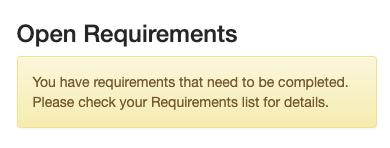
Once in LEO, you may be automatically directed to the Requests and Requirements screen. If you are not automatically directed to that screen, click on the Open Requirements yellow dialogue box:
Follow the instructions in the links contained in the Complete this requirement column for each of the initial LEO onboarding requirements with status marked as "Not Started":

Step 3: Wait for Billing Account Approval and Account Entry into LEO
You will receive email notification to confirm approval of your billing account.
IMPORTANT!! Billing accounts typically appear in LEO within 24 hours AFTER FACULTY APPROVAL.
Step 4: Submit Requests
A request may be for service only, such as analytical, fabrication, or technical services, or for training on a tool or technique, or a combination of these.
From the LEO Landing Page, click on the Requests and Requirements tab in the top menu to submit a request.
- Provide all required project details to help staff evaluate your request.
- A core facility staff member may contact you to discuss your request.
Step 5: Complete Assigned Requirements
Each tool, lab, or technique will require specific onboarding tasks such as training, documentation, or staff approval.
From the LEO Landing Page, click on the Requests and Requirements tab in the top menu or the yellow Open Requirements dialogue box.
Your Requirements Management list:
- After you submit a new request, LEO will automatically recognize and mark any previously completed related requirements.
- You are responsible for monitoring and completing all listed requirements.
- Some requirements will be systematically checked off while others may require staff verification before access is granted, or you may need to attest that you completed them.
- LEO automatically notifies staff when all required onboarding tasks have been completed.
- For MCL training requests, submissions will be reviewed by staff, and requirements will appear in LEO only after approval.
IMPORTANT!! Submitting a request in LEO does not automatically grant facility or tool access. Users must complete all assigned onboarding requirements and in-person training before access is granted.
Step 6
Once all requirements in LEO are completed and all iIn-person training is completed, tool and facility access will be granted.
Ongoing Access Requirements
Ongoing requirements (such as EHS lab safety refresher training and building access) must be maintained to retain tool access.
Help and Training Materials
- A short onboarding tutorial is available on the LEO Landing page (see the Onboarding Intro Video icon)
- LEO onsite operator tutorials are available on the LEO Landing page (see LEO Registration and Training icon)
- Contact LEOHelp@psu.edu for questions or assistance. For LEO system issues, please include screenshots to show your issue, if possible.